Appearance
Coding Challenges
Students interact with challenges, earn badges, and track progress.
Access Weekly Challenges
- Navigate to Student Dashboard > Weekly Challenges
- Click on either the card at the top of the page, or the row in the table of the challenge you want to attempt.
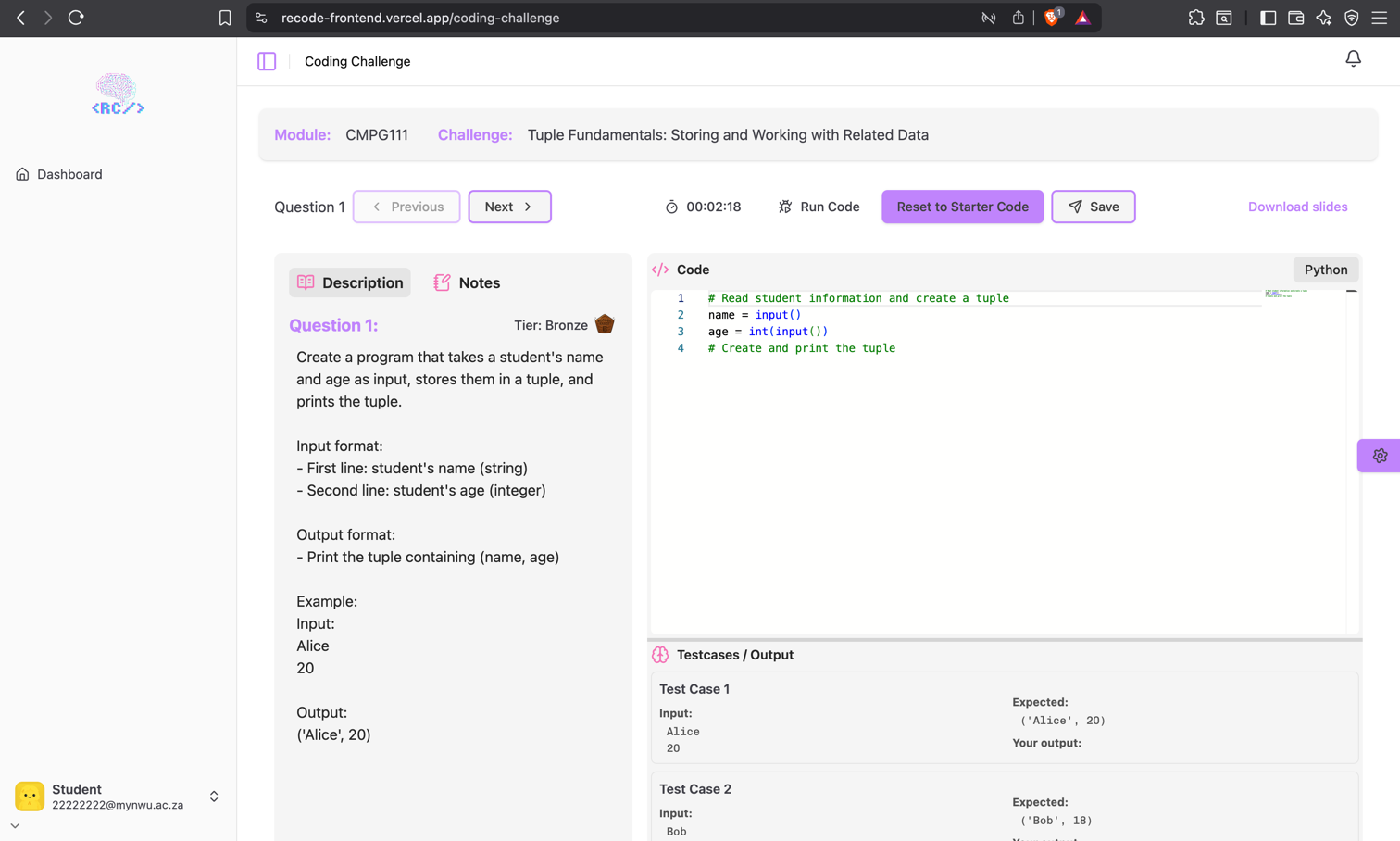
Top Button Bar
- Question: You can see the question number you are busy with and move between the question with the Previous and Next buttons.
- Timer: You can see the time you spent on the current question. The timer starts automatically when the question is displayed.
- Run Code: You can run the code to compare your code with the test cases and see the expected output vs your output and wether you passed or failed the test.
- Reset to Starter Code: This will reset the code to the original code or the last saved code.
- Save / Submit Challenge: Between the questions you can Save your code, this will save it and move you to the next question. You can Submit your code after you have finished all the questions.
- Download Slides: This will download the slides related to the challenge.

Main View
- This view is split into three parts:
- Description / Notes: The description of the challenge and what you need to do. The notes tab allows you to make notes.
- Code section: Code editor with the starter code and where you can write your code.
- Testcases / Output: The test cases that you need to pass and your output against the test cases.
Submitting for Grading
- Click Submit Challenge to submit all questions in the challenge.
- System computes verdict:
- Badges, elo points, title gets updated based on your performance.
- Wrong Answer: On the dashboard you will be able to see if you did not get a badge